
Ever tried to delete an app on your Samsung Smart TV only to find yourself in a digital wrestling match? It’s like trying to unstick a stubborn piece of gum from your shoe—frustrating and slightly embarrassing. With all those apps vying for your attention, it’s easy to feel overwhelmed.
Common Issues With Deleting Apps
Deleting apps on a Samsung Smart TV presents multiple challenges. Users frequently encounter issues that hinder a smooth experience.
Understanding Smart TV App Management
Smart TV app management involves navigating a complex interface. Managing storage space becomes difficult when many apps occupy limited memory. Users may find that some apps cannot be deleted due to restrictive settings. System apps or pre-installed apps often lack deletion options. Frequent updates also complicate uninstalling processes, as apps sometimes reappear after updates. Regularly checking for updates is crucial to maintain optimal performance.
User Experience Challenges
User experience issues arise when trying to delete unwanted apps. Confusing menus and settings can frustrate even tech-savvy individuals. App deletion options may not be readily visible, resulting in wasted time searching. Difficulties with remote controls can further complicate navigation, especially for older models. Users often express dissatisfaction due to limited help available online. Some may not realize that restarting the TV can sometimes resolve minor issues. These challenges highlight the need for clearer instructions on managing apps.
Troubleshooting Steps
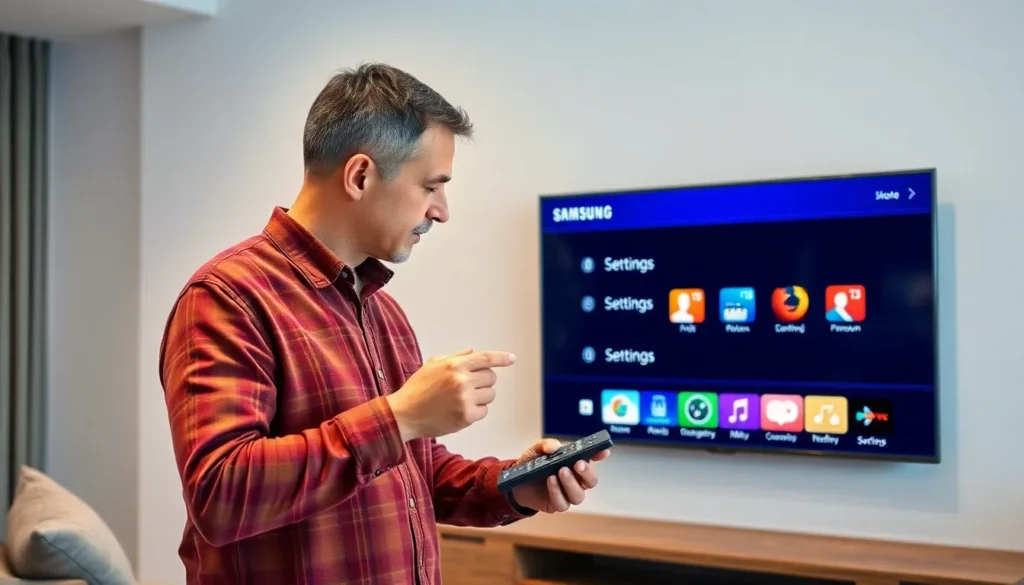
Facing difficulties with app deletion on a Samsung Smart TV can be frustrating. Several troubleshooting steps can help resolve these issues.
Restarting Your Samsung Smart TV
Restarting the Samsung Smart TV often resolves minor glitches that prevent app deletion. Turn off the TV and unplug it from the power source for about 30 seconds. This action clears temporary data and resets functionalities. After plugging the TV back in, check if the issue persists. Users often find that restarting can refresh the system and restore normal operations. Performing this step might eliminate loading errors, making it easier to manage apps.
Checking for Software Updates
Keeping the software updated ensures the TV operates smoothly and efficiently. Navigate to the Settings menu and select Support. Choose Software Update to check for available updates. Installing the latest version can fix bugs that interfere with app management. Users benefit from improved features and performance when software is current. If automatic updates are enabled, the TV may download updates without prompts, enhancing the overall experience. Regularly checking for updates proves beneficial in maintaining optimal functionality on the device.
Deleting Apps From Your Samsung Smart TV
Deleting apps on a Samsung Smart TV presents unique challenges. Specific methods apply when removing built-in or user-installed apps.
Removing Built-In Apps
Removing built-in apps often proves difficult. Samsung restricts the deletion of certain pre-installed applications. Instead of deletion, users can typically only disable these apps, preventing them from running in the background. Access the Settings menu, select Apps, then locate the desired app. An option to disable it should appear; selecting this will effectively stop the app without removal. System efficiency improves when unnecessary built-in apps are disabled, allowing for better performance.
Uninstalling User-Installed Apps
Uninstalling user-installed apps follows a straightforward process. Begin by navigating to the home screen and selecting the Apps icon. Users can then highlight the app they wish to remove. Options for uninstalling will appear, usually presented as a delete or remove choice. Confirming this action will delete the app from the device. Available storage space increases once user-installed apps are removed, enhancing device performance and accessibility to other applications.
Alternative Solutions
Users encountering issues with app deletion on a Samsung Smart TV can explore several alternative solutions to manage their apps effectively.
Resetting Smart Hub
Resetting the Smart Hub often restores the ability to delete problematic apps. This process can resolve glitches that prevent deletion. To reset, users navigate to Settings, select Support, and then choose Self Diagnosis. Following that, they opt for Reset Smart Hub. After completing this step, a prompt appears requiring users to enter a PIN, usually 0000. Confirming the reset may take a few minutes, but it can significantly improve app management. Users should note that this action resets the Smart Hub, deleting all app settings and preferences. However, it allows for a fresh start in managing installed apps.
Contacting Samsung Support
Contacting Samsung Support provides an additional avenue for assistance. Representatives can offer detailed guidance on resolving app deletion challenges. Users can reach support via phone, chat, or online forums for prompt responses. Before contacting support, gathering specific information about the TV model and the apps in question can streamline the process. Samsung’s website features a dedicated support section with troubleshooting resources, FAQs, and live chat options. Users may find that providing detailed descriptions of issues leads to faster solutions. A support team member can explain any restrictions preventing app deletion, offering personalized assistance based on individual queries.
Navigating app management on a Samsung Smart TV can be a daunting task. Users often find themselves facing obstacles that hinder their ability to delete unwanted applications. While some solutions like restarting the TV or resetting the Smart Hub can help, persistent issues may require further assistance.
Staying updated with the latest software is essential for optimal performance. For those struggling with app deletion, reaching out to Samsung Support can provide tailored guidance. By utilizing the available resources and troubleshooting methods, users can enhance their Smart TV experience and regain control over their app management.